1. Prepare Voice Inbox
Open Voice Inbox and install a speech model first. The keyboard uses the same selected local model as recording transcription. Recognition runs on your device after the model is ready.
Android-only short-phrase dictation
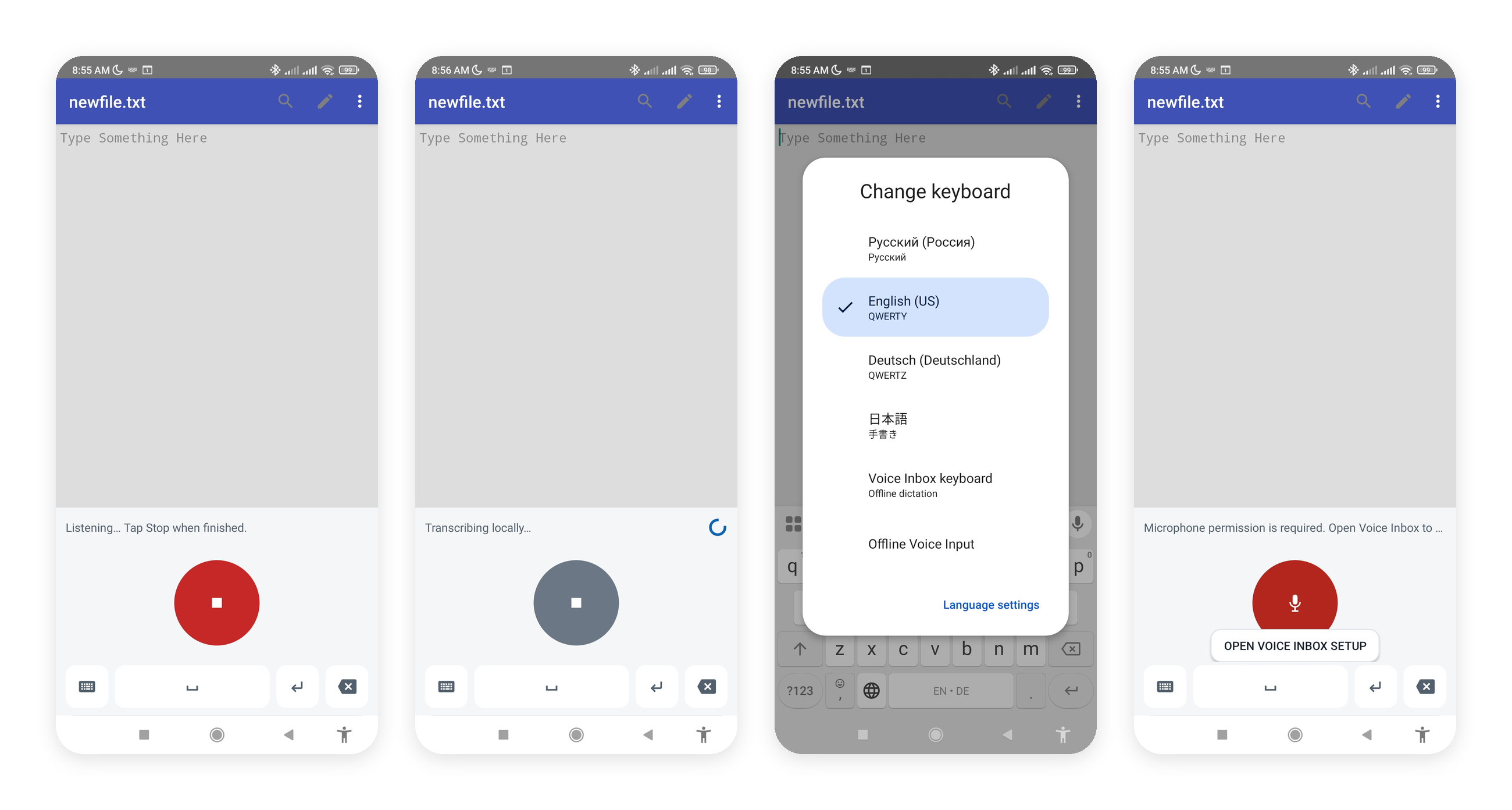
Voice Inbox can appear as a compact Android input method. It records a short phrase, recognizes it locally with your installed speech model, and inserts a non-empty result into the active editor. It is not a full typing keyboard and is not currently available on iOS.
Open Voice Inbox and install a speech model first. The keyboard uses the same selected local model as recording transcription. Recognition runs on your device after the model is ready.
In Voice Inbox Settings, open Voice keyboard and choose the setup action. Android opens its own input-method settings, where you explicitly enable Voice Inbox. Android controls this security confirmation; Voice Inbox cannot enable itself.
Tap the keyboard action again, or use Android's keyboard switcher, and select Voice Inbox. Open an app with an editable text field before you start dictating.
The keyboard needs Android microphone permission to capture your phrase. If permission or a valid model is missing, return to Voice Inbox setup and follow the displayed recovery action.
The first use can show a preparation status while the local model is loaded. Recording becomes available after warm-up succeeds. This can take noticeable time on some devices but does not upload your audio.
Tap the main dictation control to start and tap again to stop, or hold it while speaking and release to stop. Wait while the phrase is transcribed. A non-empty result is inserted into the active editable field.
Use the keyboard-switch control in Voice Inbox to return to the previous input method. If Android cannot restore it directly, use the system keyboard picker.
Voice Inbox is intended for short phrases, not continuous background listening or live partial transcription. Some editors may restrict text insertion, and recognition quality and speed depend on the selected model, language, audio, and device.
Android workflow